

Network Boost
Two (or more) connections are better than one. Use Network Boost to keep your IRL stream going when your main connection drops or weakens.
Keep your IRL stream connected
Use available WiFi and cellular data networks together to help reduce dropped frames, avoid unstable connections, and stay live in real-world conditions with confidence.
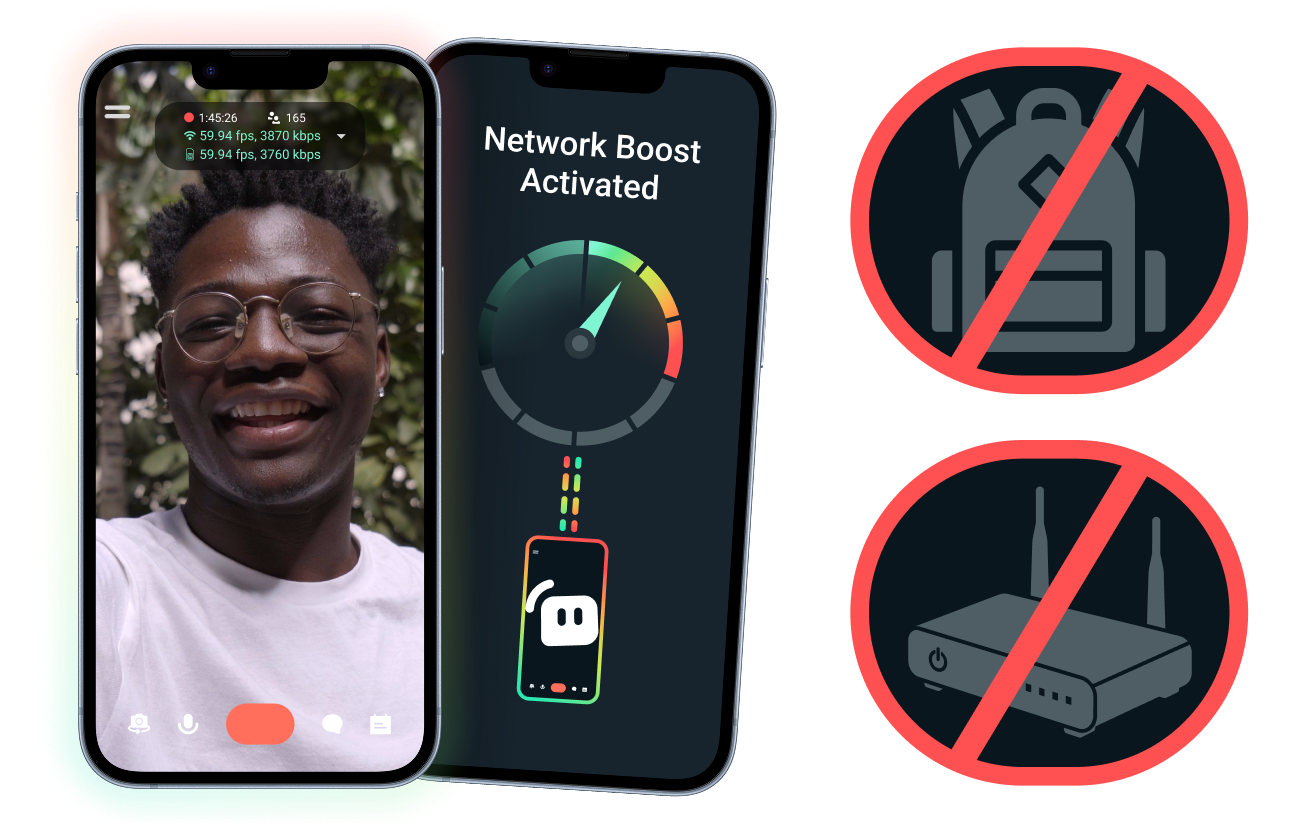
Easy setup. No extra hardware.
Stabilize your mobile stream using the connections you already have. No pricey routers, streaming backpacks, or complicated gear required. However, advanced setups are supported, too.
Live stream beyond your desk
Whether you’re streaming from events, hotels, parks, or crowded public spaces, Network Boost helps strengthen your connection so you can go live beyond your stationary, at-home stream setup.
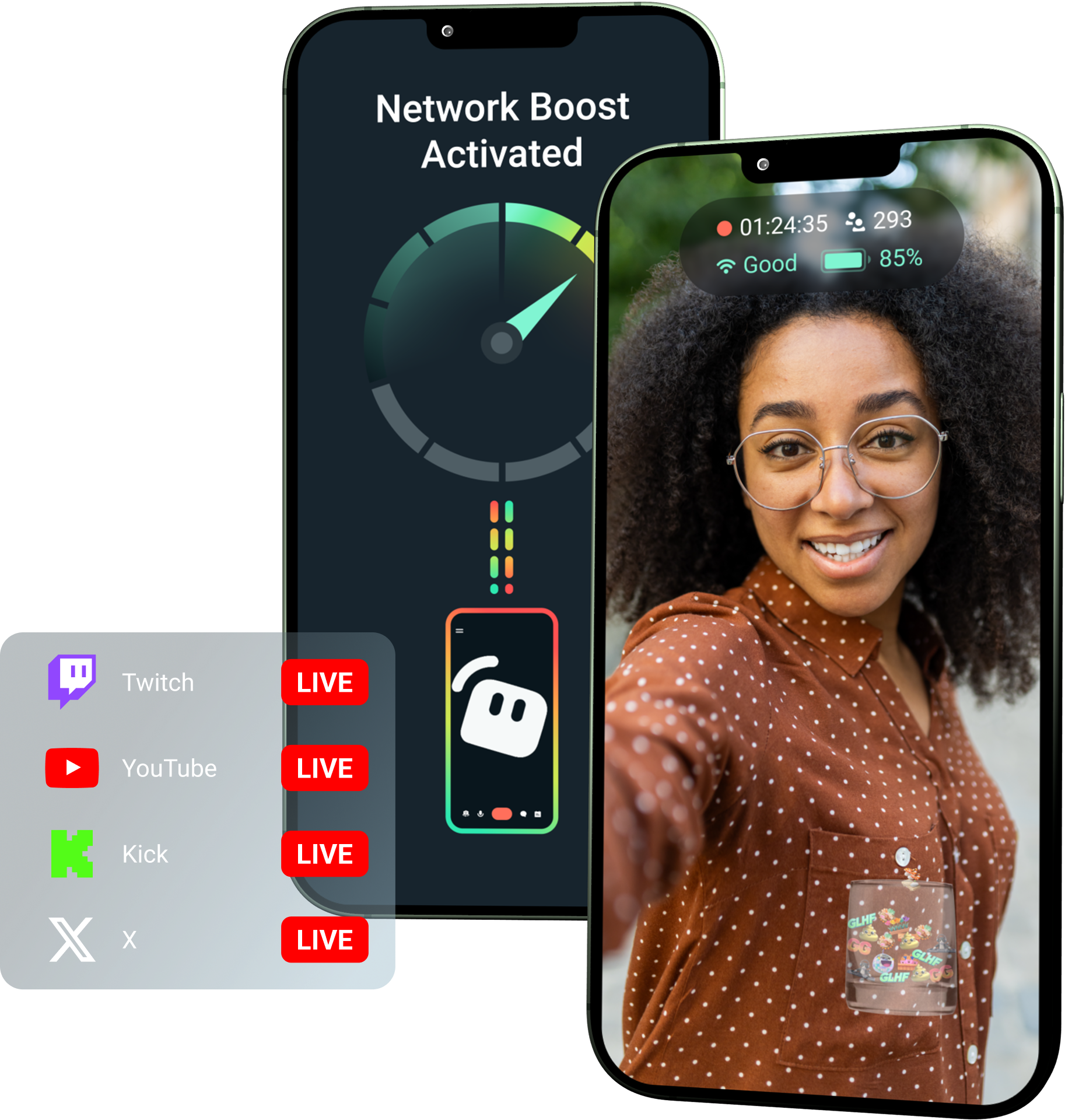
Unlock Network Boost with Streamlabs Ultra!
Ultra gives mobile creators access to premium features like Network Boost, Multistreaming, and Disconnect Protection to help them create better, stable streams from their mobile devices.
How it works
Use WiFi and cellular data together to help keep your mobile stream live, even when your connection gets sketchy.
Open Streamlabs Mobile and turn on Network Boost to start setup. For advanced setups with multiple relay devices, open Streamlabs Controller to get started.
Scan the QR code or manually enter the connection details to pair your devices.
Once connected, go live in Streamlabs Mobile. Network Boost runs in the background to keep your stream connected!
Network Boost vs. Other Solutions
| Network Boost | Streaming Rigs & Backpacks | Other Software Solutions | Other | |
|---|---|---|---|---|
Best for | Creators who want a simpler way to improve mobile/IRL stream reliability without extra hardware | Advanced IRL creators with pro level needs and larger equipment budgets | Creators comfortable adding a separate tool to help manage internet connections | Customizable tip page |
Extra Hardware Required | No | Yes, often requires encoders, modems, routers, backpacks, or accessories | No dedicated streaming hardware, but may require a separate app or service | Customizable tip page |
Easy Setup | Straight forward setup—works through Streamlabs Mobile and the Streamlabs Controller app (for additional connections) | Requires hardware setup, configuration, charging, and transport | Requires setup outside the streaming apps | |
Cost | Included with Streamlabs Ultra/Ultra+ as just one of many premium perks for creators | Can require hundreds or thousands of dollars upfront, plus possible ongoing data/service costs | Often lower than hardware setups but may require a separate subscription | Customizable tip page |
Built for IRL Streamers | Yes; designed for mobile streamers at any level | Yes, but usually built around more advanced IRL production setups | May support connection management but not always built specifically for mobile streaming needs | Customizable tip page |

Level up your live streams, branding, editing, and more with Streamlabs Ultra
Access premium features across the full suite including Streamlabs Desktop, Mobile, Console, Talk Studio, Podcast Editor, Cross Clip, and more, available at one, affordable price. Learn More
Frequently asked questions
Network Boost helps mobile streamers improve stream reliability by using multiple internet connections, such as WiFi and cellular data. When one connection weakens or becomes unstable, Network Boost helps reduce dropped frames and interruptions so creators can stay live with more confidence.
Network Boost is set up through the Streamlabs Mobile (or Streamlabs Controller app for advanced connections) and is built for creators going live with Streamlabs Mobile. Creators can enable Network Boost, connect available internet sources, and go live as usual. Network Boost runs in the background to help support the stream when network conditions change.
Mobile and IRL streamers often go live from unpredictable environments, including events, hotels, outdoor spaces, travel destinations, and public WiFi networks. When a connection weakens or drops, creators risk dropped frames, stream interruptions, lost viewers, and reduced engagement.
It can also disrupt the creator’s IRL experience when they have to repeatedly pause, troubleshoot, or adjust their setup during a live stream.
Yes. Network Boost is available exclusively to active Streamlabs Ultra and Ultra+ subscribers or those with an active trial of either.
- Ultra subs get 10 hours of Network Boost per month
- Ultra+ Subs get 80 hours of Network Boost per month.
Streamlabs Ultra also unlocks additional mobile streaming tools, including Stream Shift, multistreaming, and more.
Other parts of the Streamlabs Mobile experience, including Privacy Filter, are available to all Streamlabs Mobile users.
If you're streaming in an area with poor connection, utilize Network Boost which combines multiple networks for a more stable connection, and Disconnect Protection which keeps your stream live if your service totally cuts out. Both are available on Streamlabs Mobile exclusively for Ultra members.
Currently, the primary streaming device must be iOS (e.g. iPad or iPhone) while the secondary/relay device can be either iOS or Android. Performance depends on the strength and availability of the networks being used.
No. Network Boost does not require extra hardware, such as a streaming backpack or router. It is designed to work with the connections and devices creators already have.
Please contact support at this link.