

Streamlabs Desktop App Store
Add music, interactive experiences, custom visuals, automation, analytics, and more—all inside Streamlabs Desktop.
Get the full app library with Streamlabs Ultra.
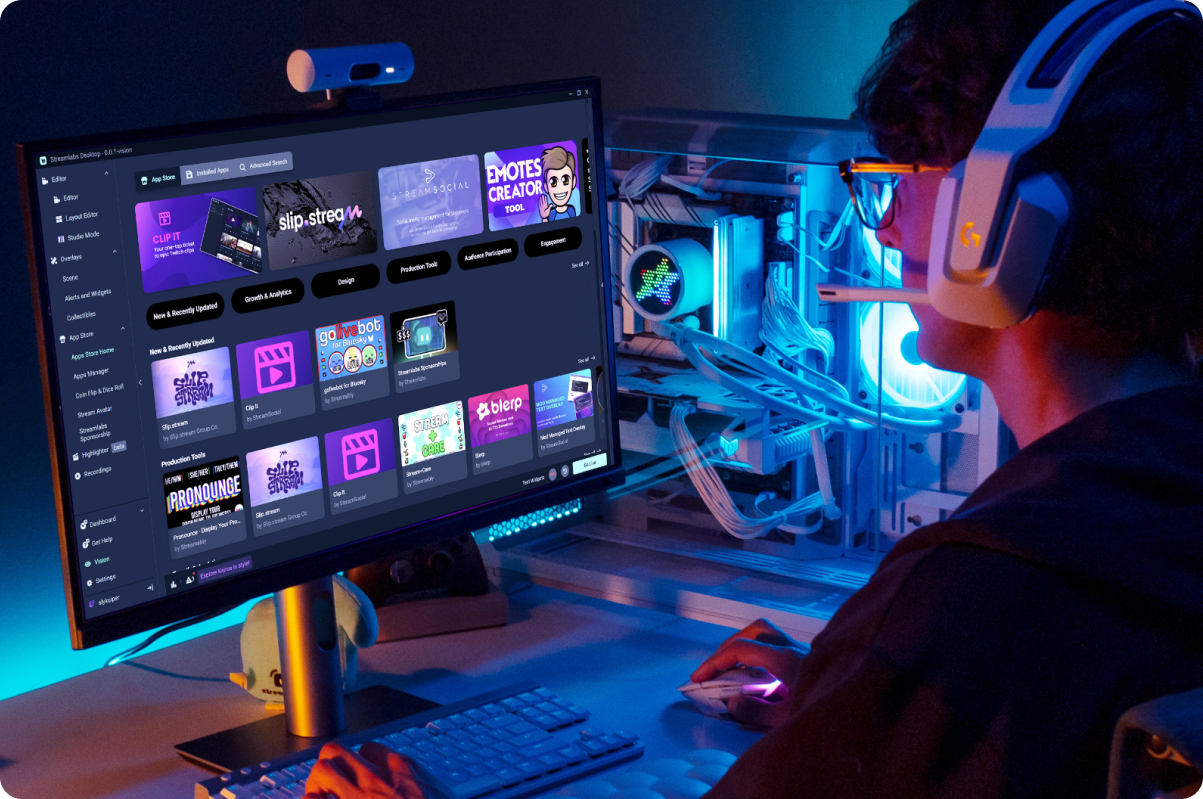

Add your first app in minutes
Download Streamlabs Desktop, open the App Store, choose an app, and install it.
There’s no complicated setup. Start with the apps you need today, then add more as your stream grows.
Apps for every aspect of streaming
Whether you want a more polished stream, a more active chat, or more exciting viewer moments, there’s an app to help.
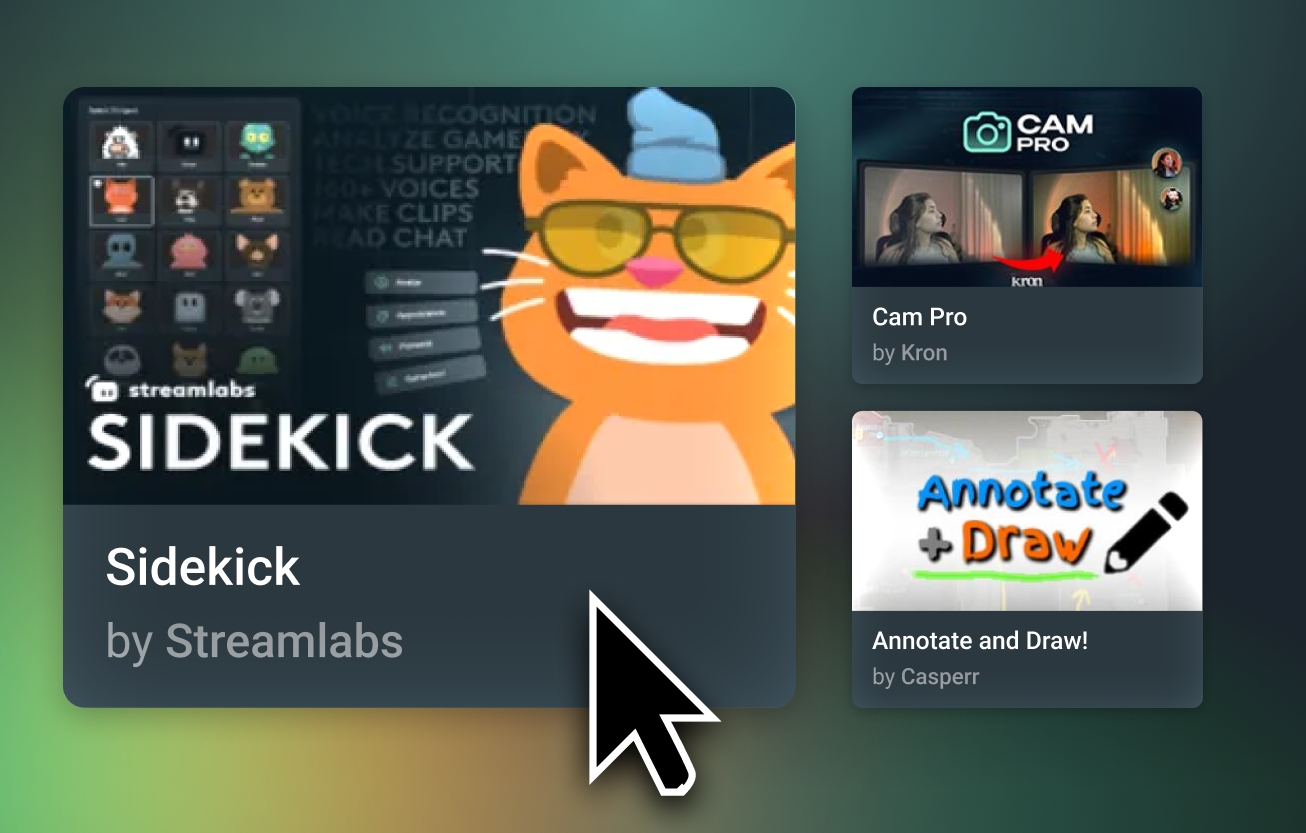


Streamlabs Approved
Apps in the Streamlabs App Store are reviewed by the Streamlabs team before they are made available.
Discover tools from Streamlabs and third-party developers without leaving Desktop.

Do more without rebuilding your setup
Apps work inside Streamlabs Desktop, giving you new ways to customize your stream, engage viewers, automate tasks, and understand what’s working.
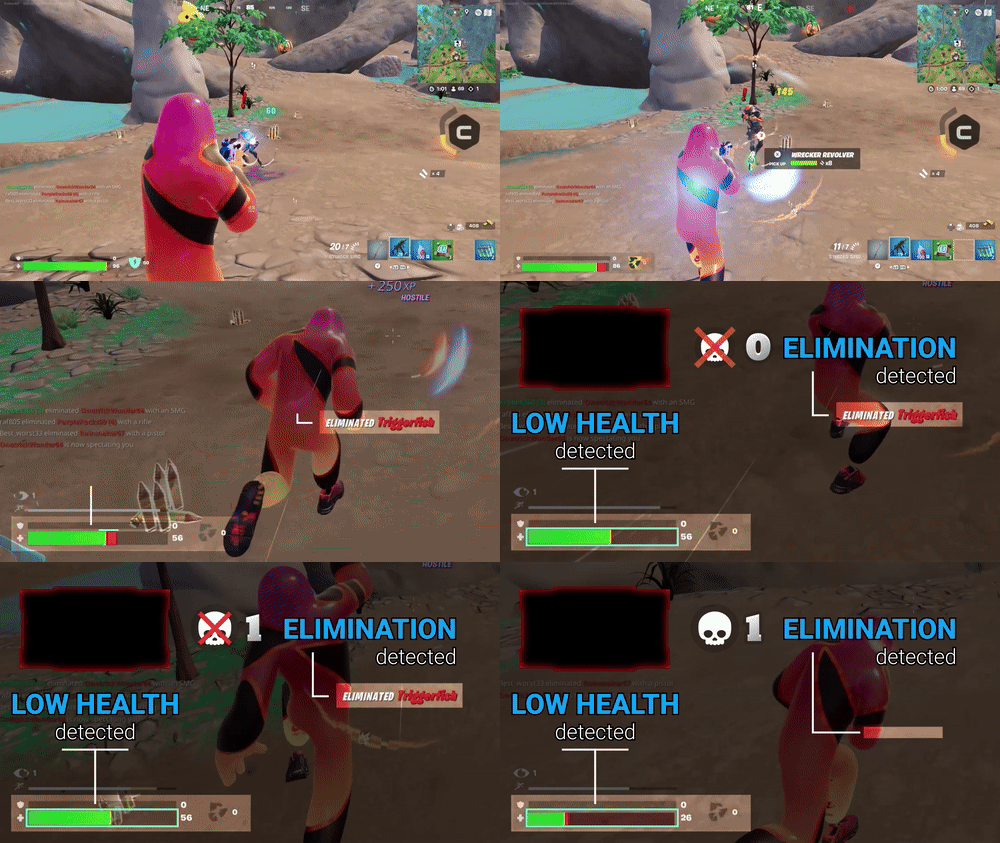
Powered by Streamlabs AI
Streamlabs AI is powering the next generation of creator tools. It already powers Sidekick, with more apps from Streamlabs and developers around the world coming soon.
Frequently asked questions
The Streamlabs App Store is a built-in library of dozens of vetted apps created by third-party developers to enhance your stream with more control, automation, better analytics, and new ways to interact with your audience. The App Store is one of Streamlabs' many investments in the creator community, helping developers succeed by paying them for each app installation while expanding the number of tools and features creators have access to.
Widgets are features designed by the Streamlabs team to improve your stream. Widgets include features like Alert Box, Chat Box, Game Pulse, Polls, Chat Highlight, and more.
Apps, on the other hand, are streaming tools developed by third-party developers that have been vetted by the Streamlabs team for functionality and safety.
While most widgets can be used in Streamlabs Desktop and Plugin for OBS directly, Apps are currently available exclusively in Desktop.
You can currently use apps from the Streamlabs App Store directly within Streamlabs Desktop. The App Store and installed apps are pinned to your Desktop navigation. Find new apps, manage installed apps, and add app sources directly to your scenes without leaving Desktop. Plus with cloud storage, your apps come with you, even if you're streaming on a new PC.
You can find a wide range of apps in the App Store supporting, but not limited to:
- Chat interaction and games
- Stream design
- Stream-safe music
- Stream and subathon timers
- Sponsorships
- Game stats
- Sound alerts
Some apps in the App Store are free to use such as the Sponsorships app and Sidekick. Most apps are available exclusively for Ultra subscribers to ensure third-party development teams are paid for their work.
Each developer has their own contact methods for feedback. Check the App Store listing for the app you'd like to leave feedback for to find their website and social links. If you can't find what you're looking for, submit a ticket and our support team will be happy to help.
If you're interested in developing and listing an app in the Streamlabs App Store, you'll need to submit a developer application on our. To submit an application, visit https://platform.streamlabs.com/ and click Create App. Log in with your Twitch account, then click Submit Application, fill out the form, and click Apply, then wait to hear back from our team on next steps.
Please contact support at this link.